
As 1xBet Partners is already available in BeMob templates of affiliate networks, the postback configurations become easier.
¶ Affiliate Network Settings
- Press Affiliate Networks tab.
- Click New from template and select 1xBet Partners from the list.
The settings window is separated on 2 parts: Affiliate Network Details and Additional Options.
¶ Affiliate Network Details
This part contains the following settings:
- workspace selection
Workspaces of BeMob help to separate all the working processes into areas. Along with the Users Management this option allows to organize and manage the campaigns and elements smartly.
By default all the elements you create go to Master WS. Leave the default selection if you have no other pre-configured custom workspaces and move on to other settings.
🔎 Learn more about this option in our Workspaces guide.
- postback settings
Since we have already set the 1xBet Partners postback URL on our side, all you need to do is to click on Copy button.
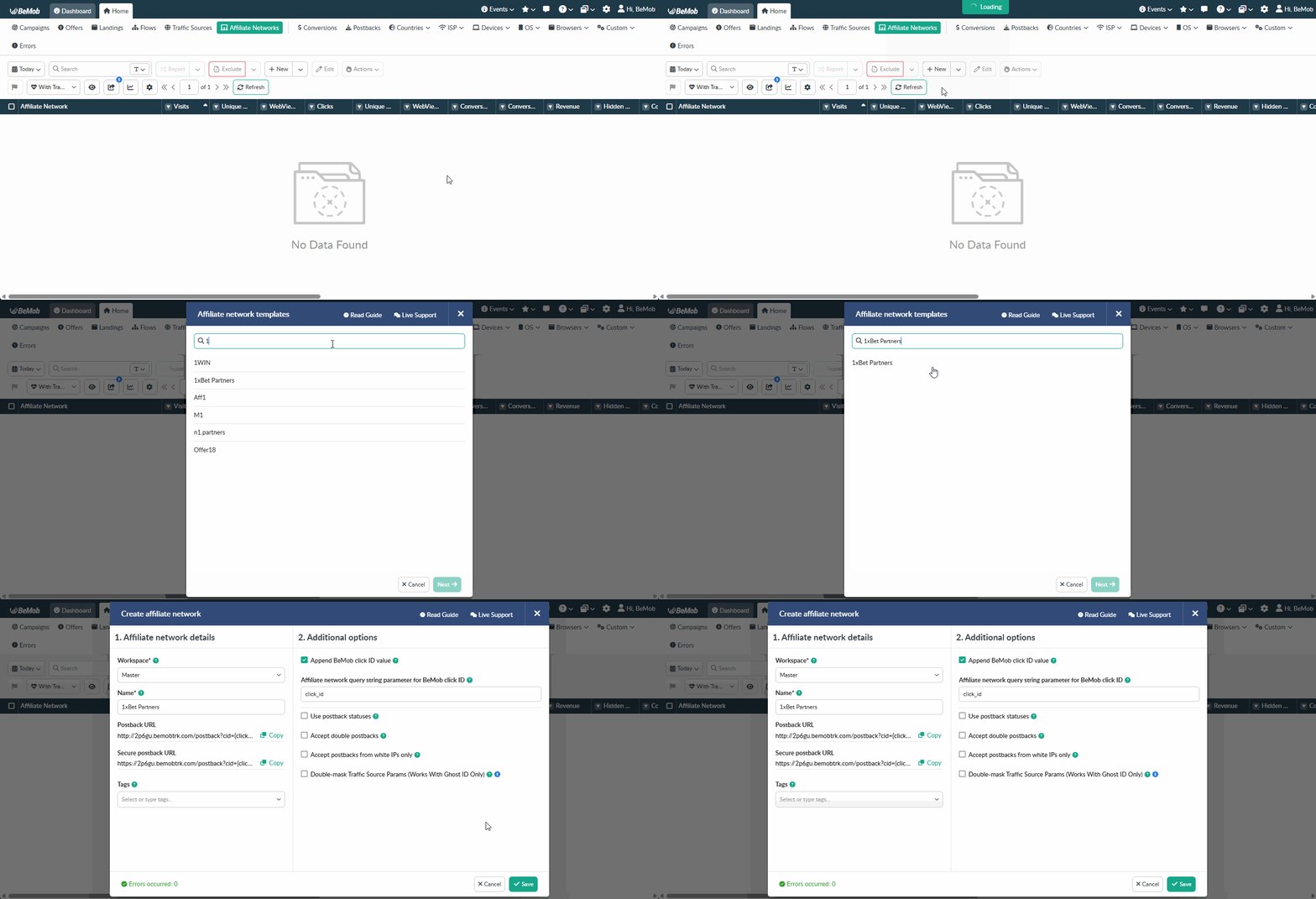
The preconfigured postback URL of 1xBet Partners is:
http://yourdomain.com/postback?cid={click_id}&payout={sumdep}&txid={transaction}&status=OPTIONAL
&status=OPTIONAL should be removed from the postback, when placing the URL on the side of 1xBet Partners.
¶ Additional Options
Use Postback Statuses option allows you to receive data on conversions with different statuses. You can track each stage of conversion from the moment it appears till the conversion is paid or rejected.
🔎 Learn more about this option in our Postback Statuses guide.
Other options such as accepting double postbacks and IPs whitelisting are completely optional in terms of 1xBet Partners settings.
❓ Relevant guide on additional options - Double Postbacks and Postbacks From White IPs
Click on Save button to store the settings of 1xBet Partners and log into 1xBet Partners account.
¶ Custom Conversions Settings
Using a Custom Conversions option, you are able to track different conversion types.
This step can be skipped if you are going to track one conversion type only.
To set a custom conversion with BeMob:
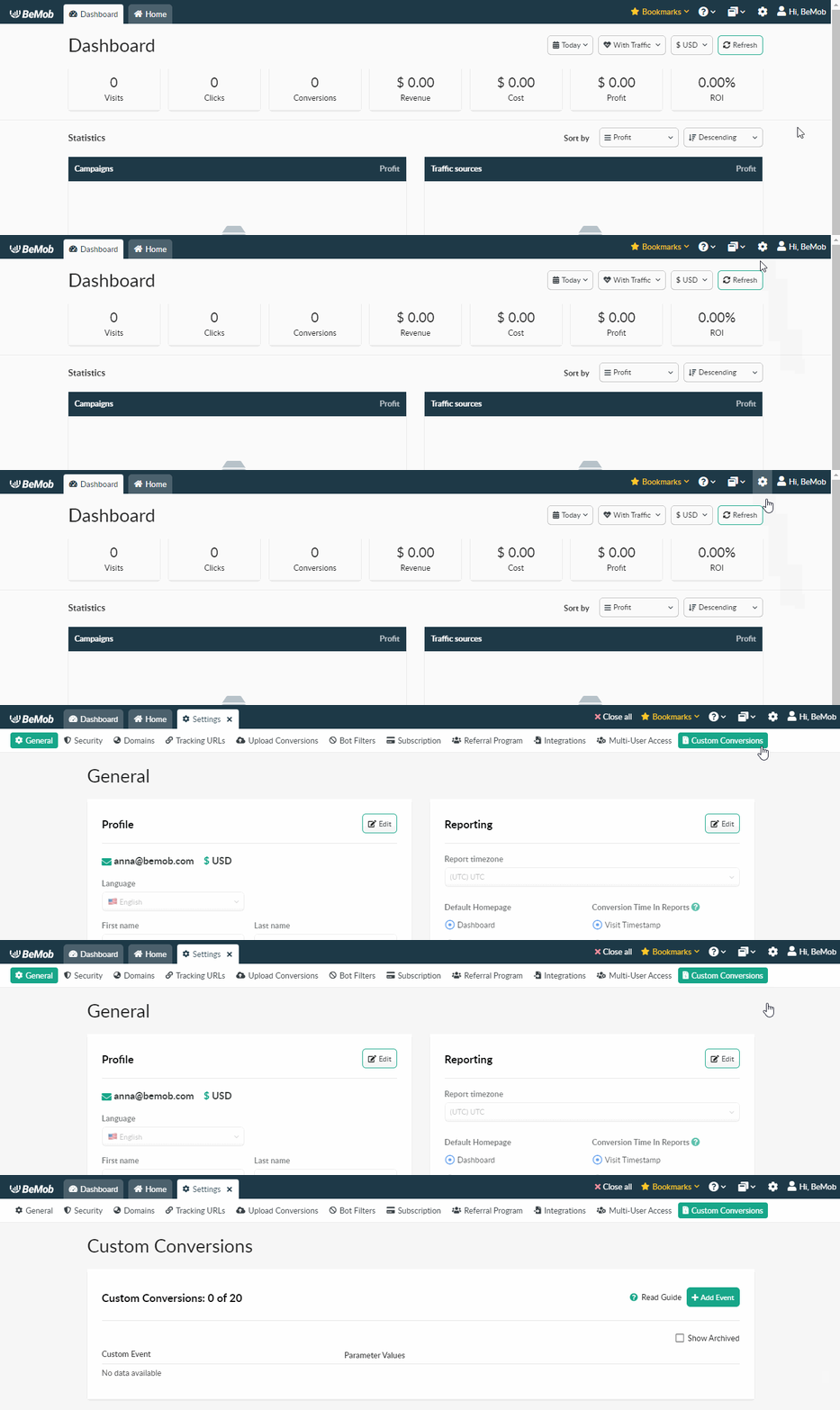
- Go to Settings on the panel.
- Access Custom Conversions section.
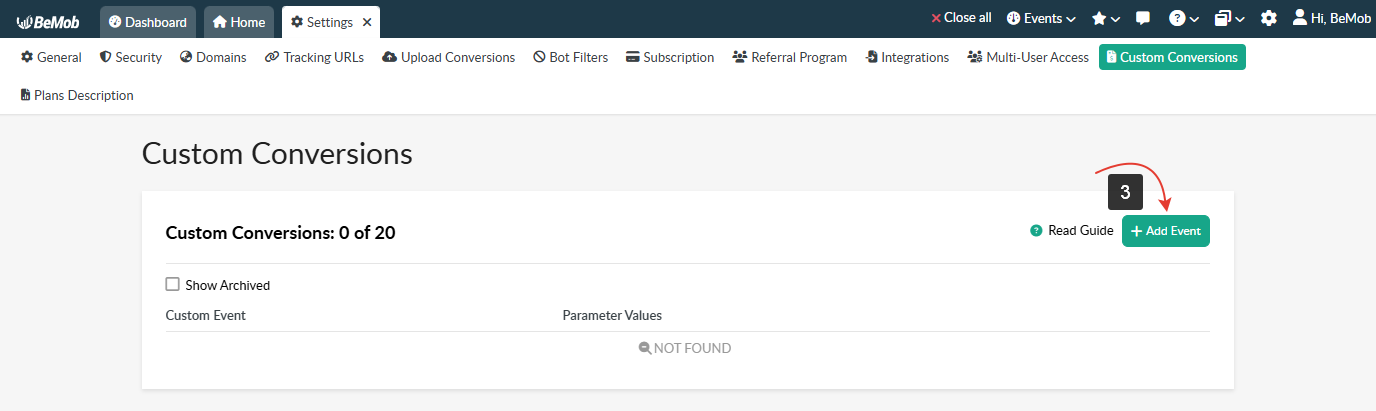
- Click Add Event button. The window of Custom Conversion Event settings will appear.
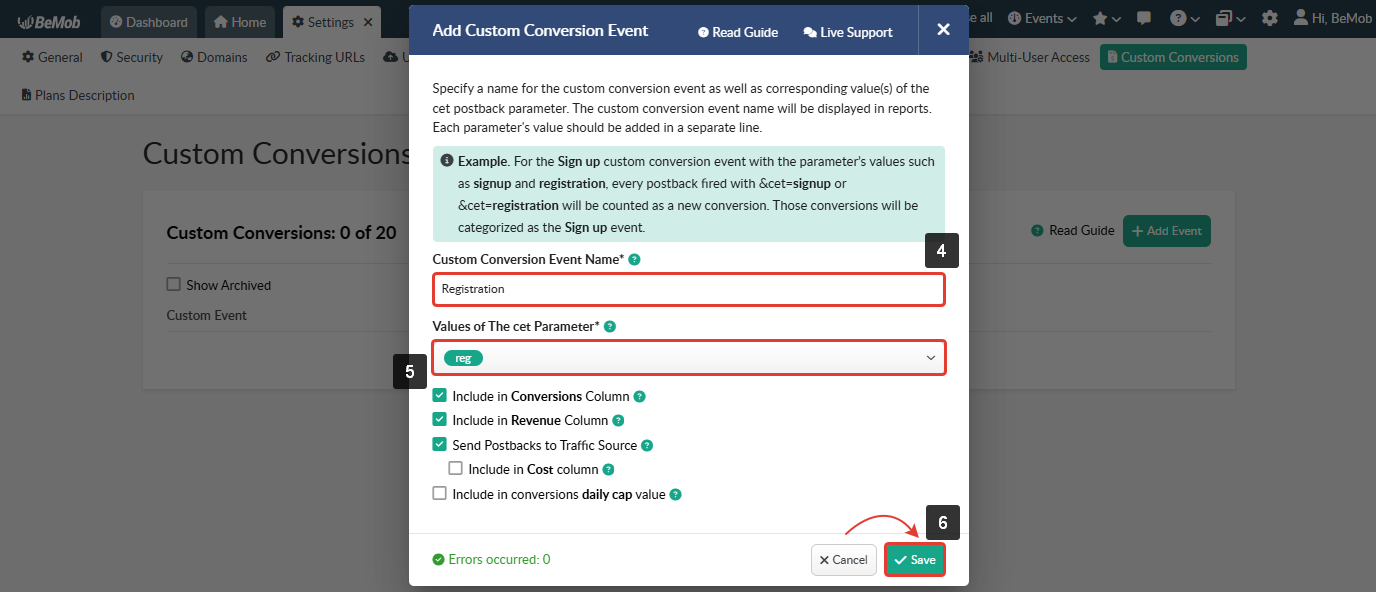
- Specify Custom Conversion Event Name. It will be displayed in BeMob statistics.
- Add Values of The cet Parameter of the cet parameter.
Ensure the value of the cet parameter matches the event type provided by 1xBet Partners.
- Press Save button to create a custom conversion in BeMob.
- Click Generate Links button.
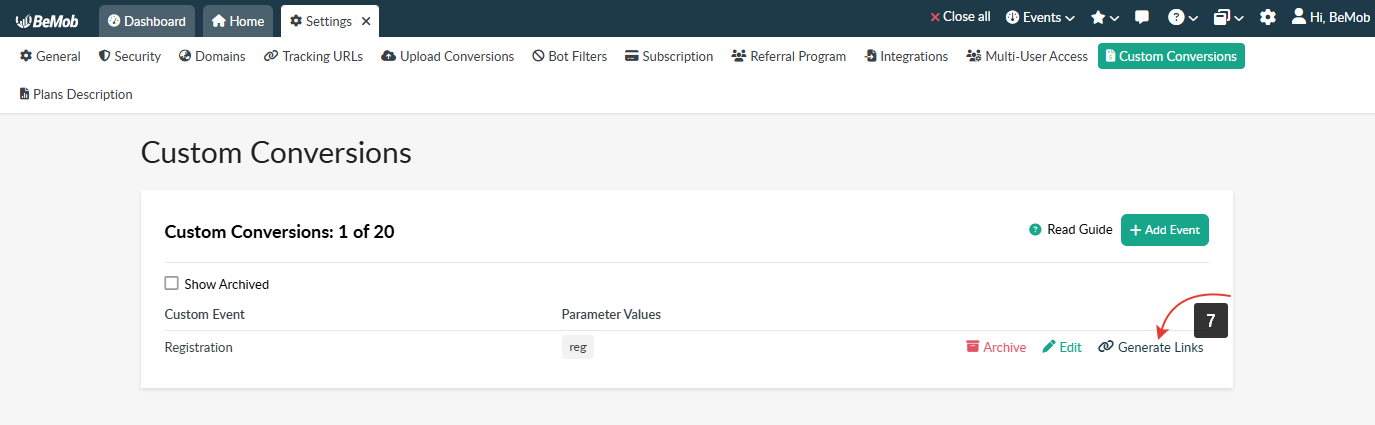
-
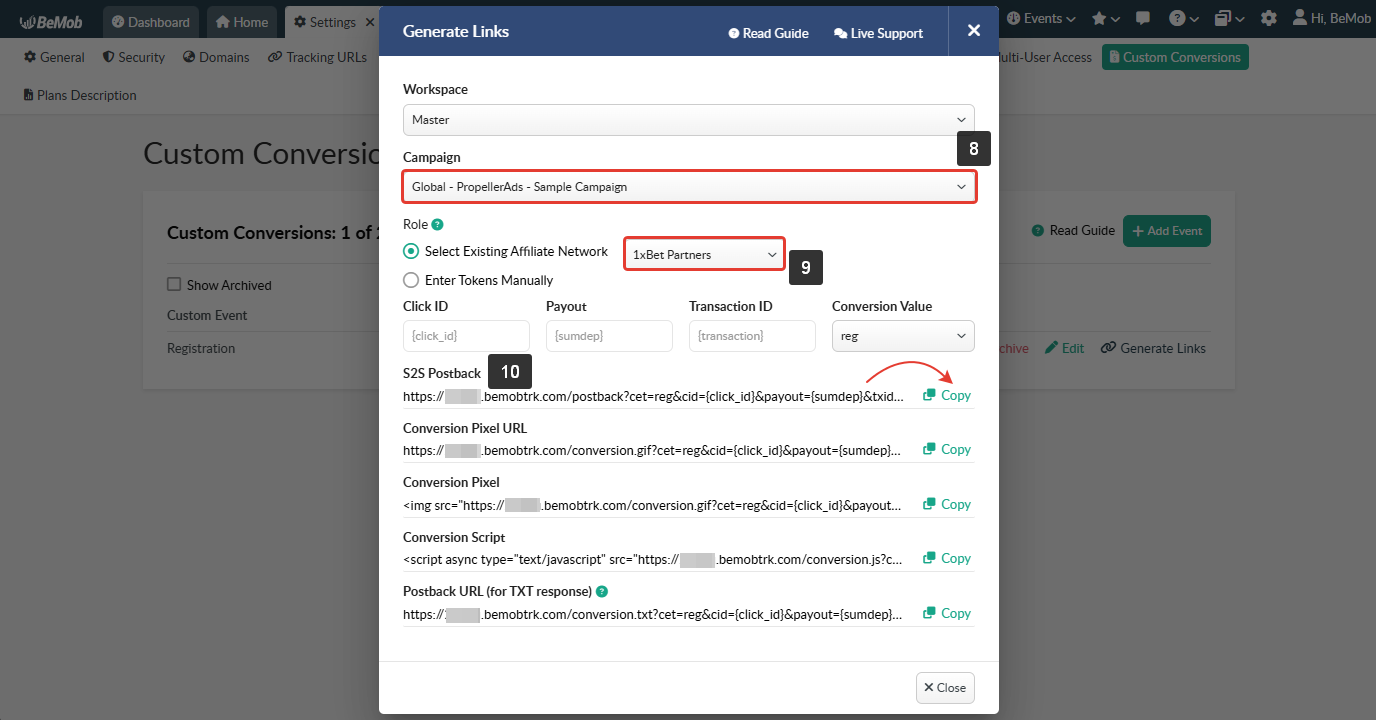
Select a campaign you want to track custom conversions for.
-
Select 1xBet Partners from the list of existing affiliate networks. All tokens supported by 1xBet Partners will be automatically added into the corresponding fields.
-
Press Copy button to get the S2S Postback.
🔎 More info about custom conversions tracking is available here.
¶ 1xBet Partners Settings
After 1xBet Partners is added with BeMob, it is required to add the postback URL on the side of this affiliate network which will notify the tracker about each incoming conversion.
If you place the postback URL as http://yourdomain.com/postback?cid=REPLACE&payout=OPTIONAL&txid=OPTIONAL&status=OPTIONAL the conversions data will not be tracked with BeMob.
The URL should contain the dedicated 1xBet Partners tokens.
Postback URL should contain 1xBet Partners dedicated tokens, that's why it is recommended to copy the postback URL from BeMob and place it on the side of 1xBet Partners with all pre-populated tokens.
¶ Postback Settings
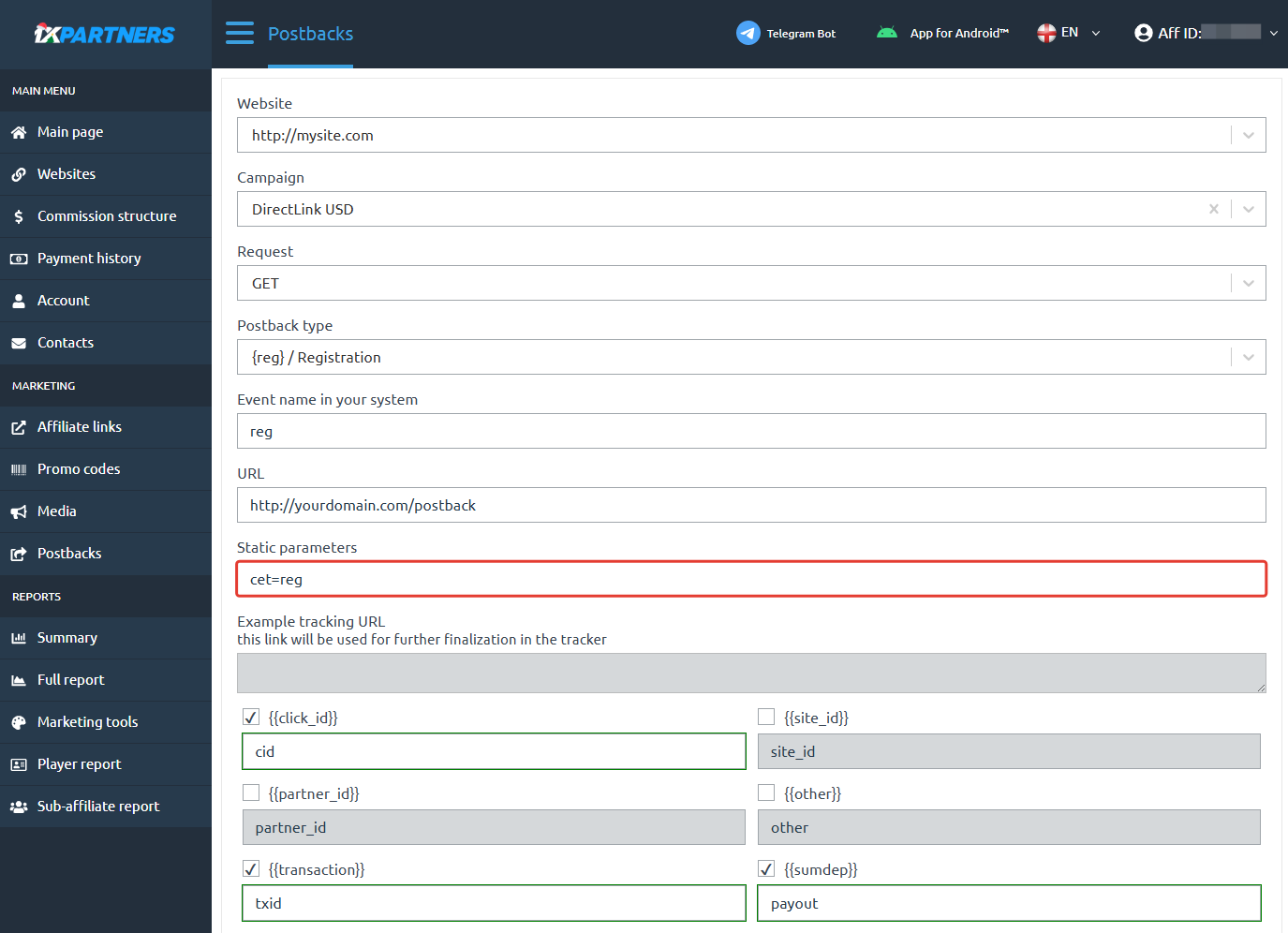
To place the postback URL on the side 1xBet Partners follow these steps:
- Access Postbacks section.
- Press Create postback button.
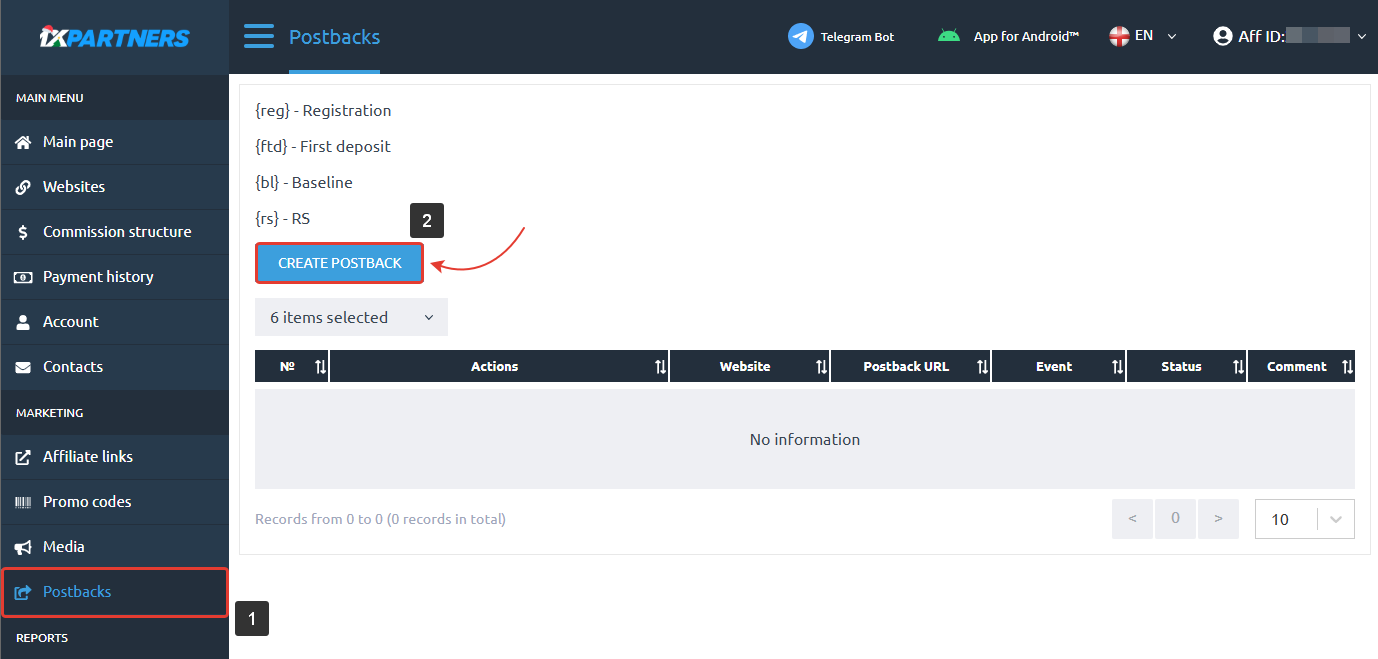
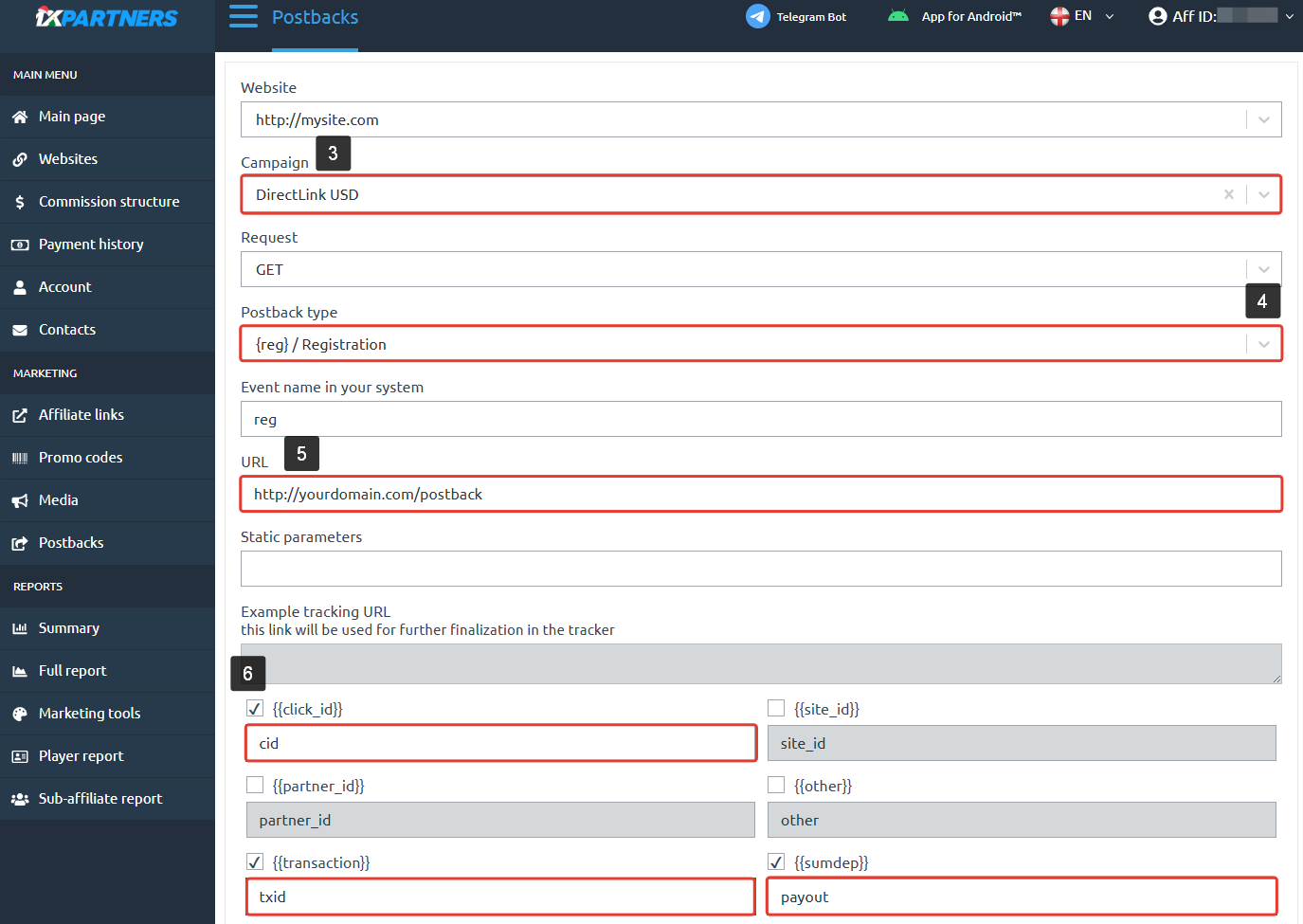
- Select the campaign you are going to promote.
- Select the Postback type you want to track.
- Paste the main part of BeMob Postback URL in the URL field.
- Specify BeMob postback parameters the following way:
cidfor {{click_id}}txidfor {{transaction}}payoutfor {{sumdep}}
If you are going to track different conversion types, specify
cet=value_of_cet_parameterin the Static parameters field.
value_of_cet_parametershould be replaced with an actual value of your custom event in BeMob. For instance,cet=reg
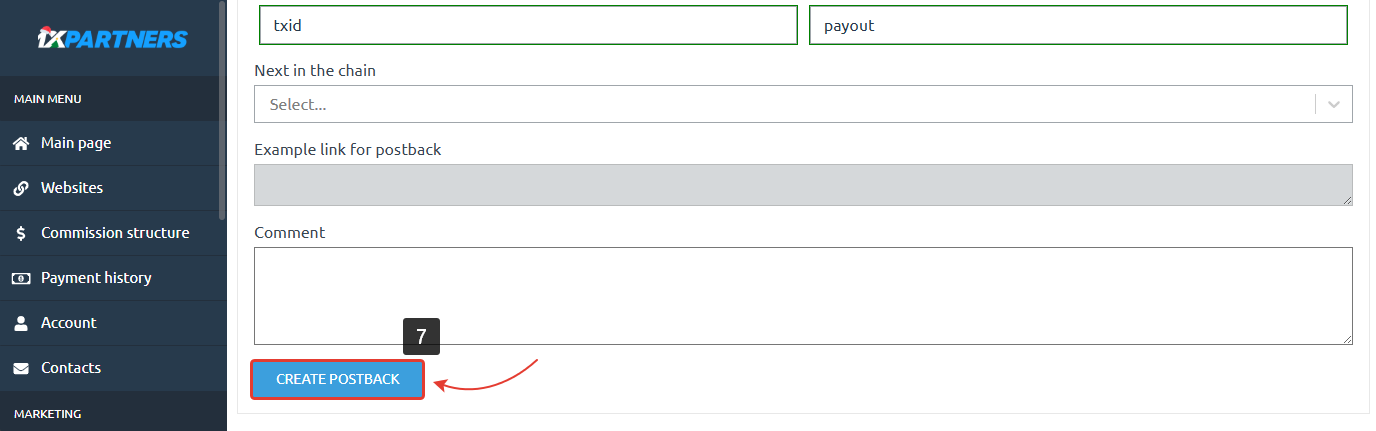
- Press Create postback button.
¶ Affiliate Link Settings
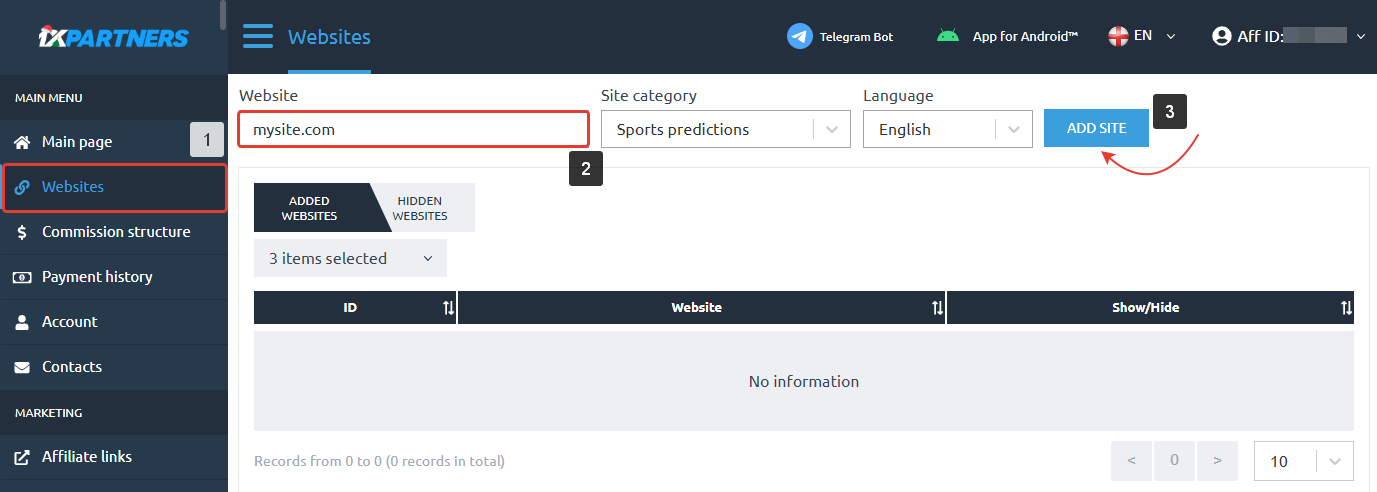
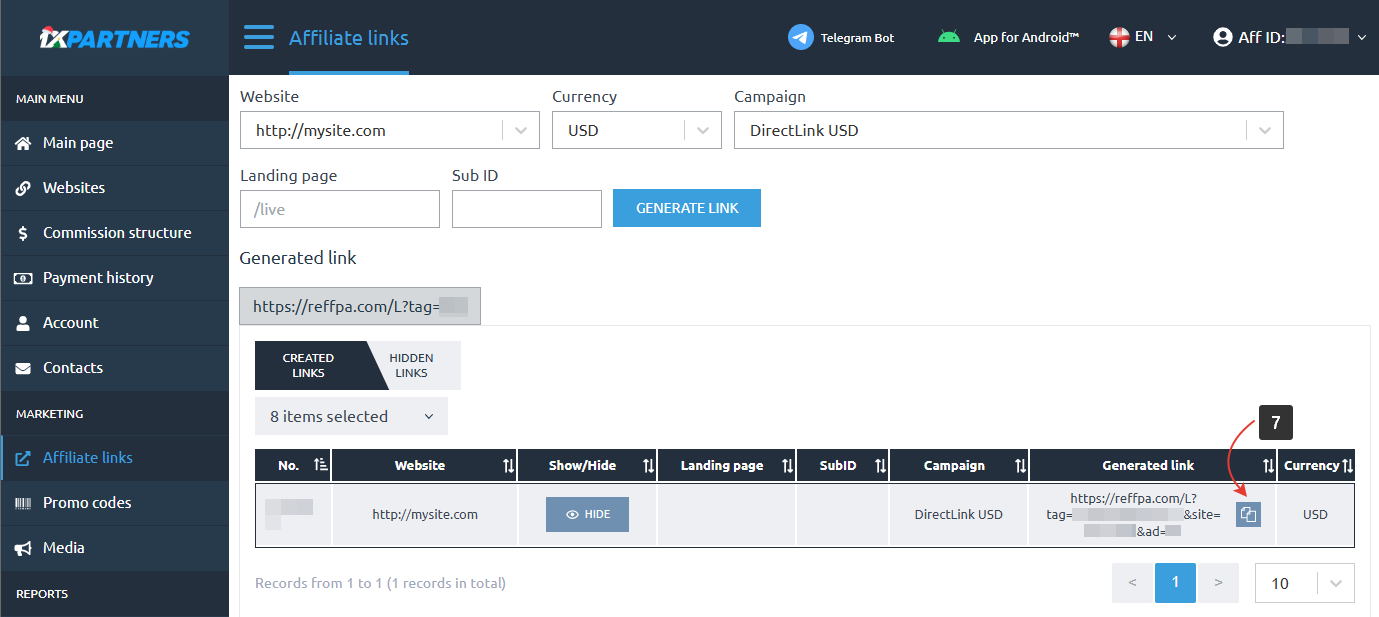
To get offer link on the side of 1xBet Partners:
- Go to Websites tab.
- Specify your website link in the corresponding field.
- Press Add site button.
- Go to Affiliate links tab.
- Select your website from the list.
- Press Generate link button.
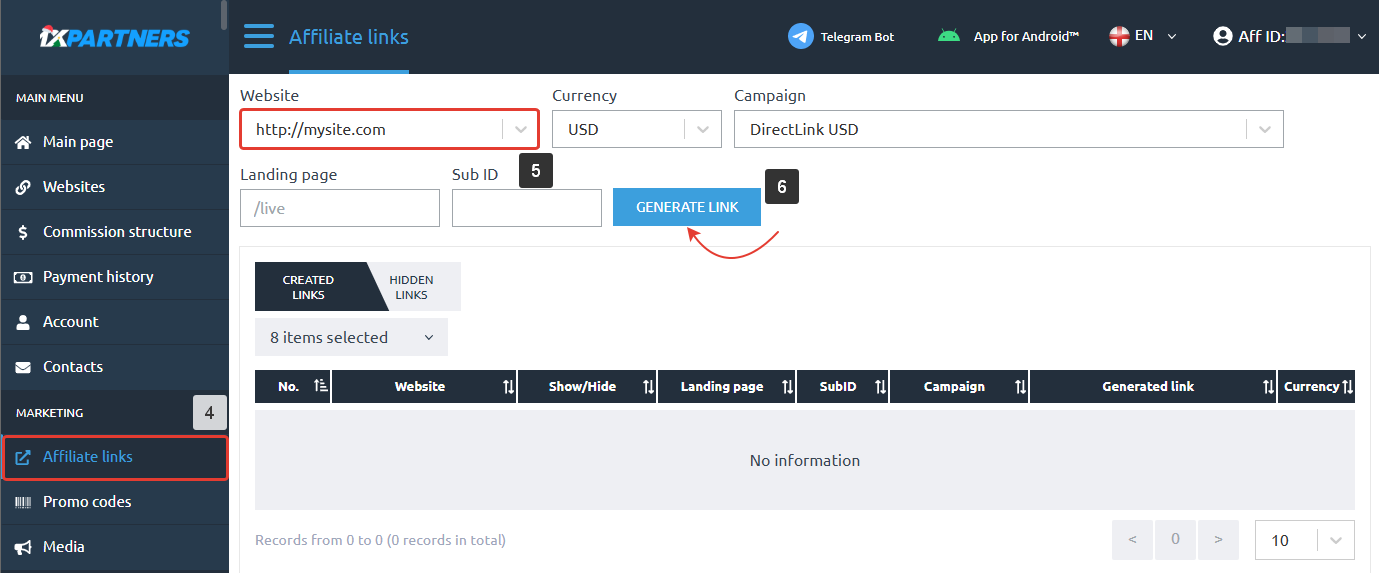
- Copy the Generated link.
¶ Offer Settings
To add the 1xBet Partners offer URL in BeMob it is required:
- Press Offers tab.
- Click New.

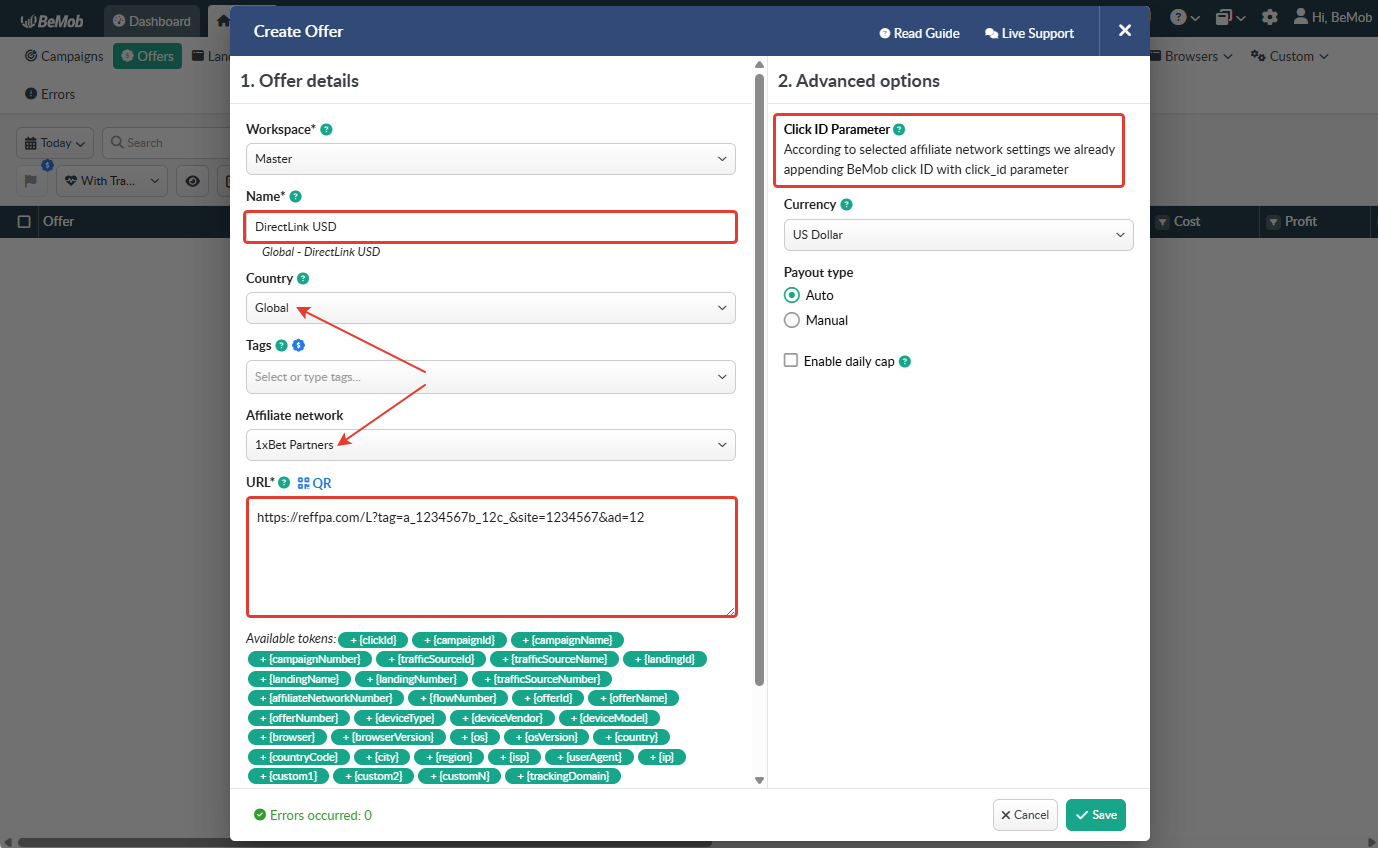
After the offer settings window appear it is required to:
- select the Workspace or leave Master as the default choice;
- add the offer name;
- specify the geo of offer;
- select 1xBet Partners as Affiliate Network;
- place the offer in the URL section;
- press Save to store the settings.
🔎 More details on offer settings see in our dedicated guide.
¶ Click ID Settings
Setting up BeMob Click ID is the obligatory step for correct conversions tracking process. The dedicated token and parameter should be added either at the end of offer URL or specified in affiliate network settings of BeMob.
In the example above you can see that no click ID value is added at the end of the offer URL as the click ID has been specified in the 1xBet Partners template at the stage of affiliate network settings.
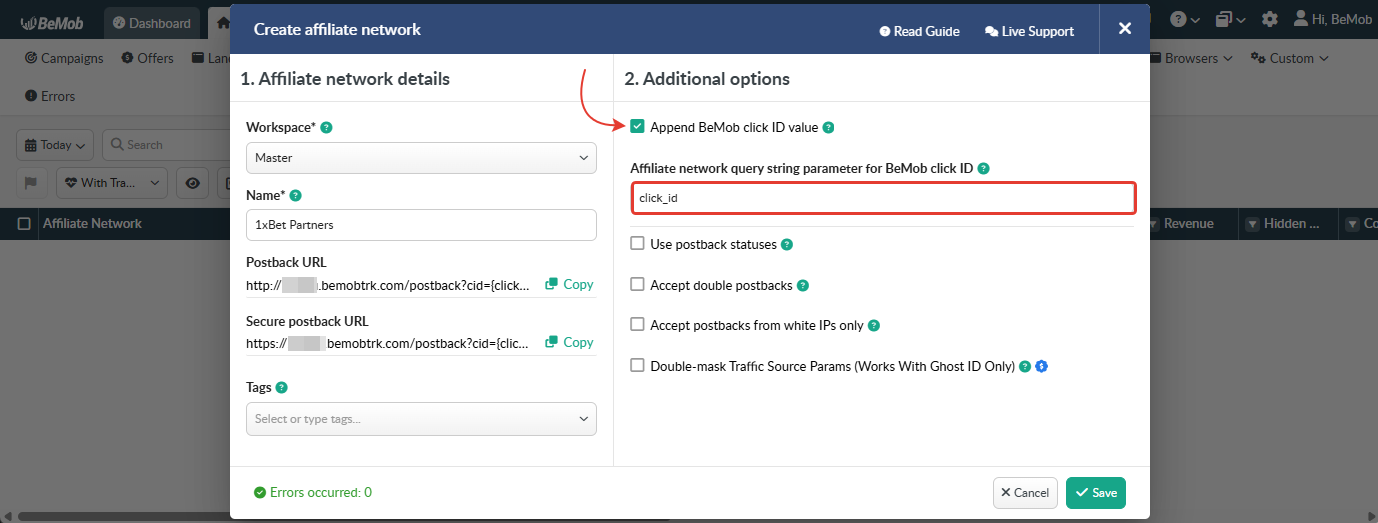
To pass click ID manually the click_id={clickId} part should be added at the end of each offer URL from 1xBet Partners and the automatic click ID passing should be switched off in the 1xBet Partners template.
Here is the sample of 1xBet Partners template and offer settings, when you decide to pass the click ID manually.
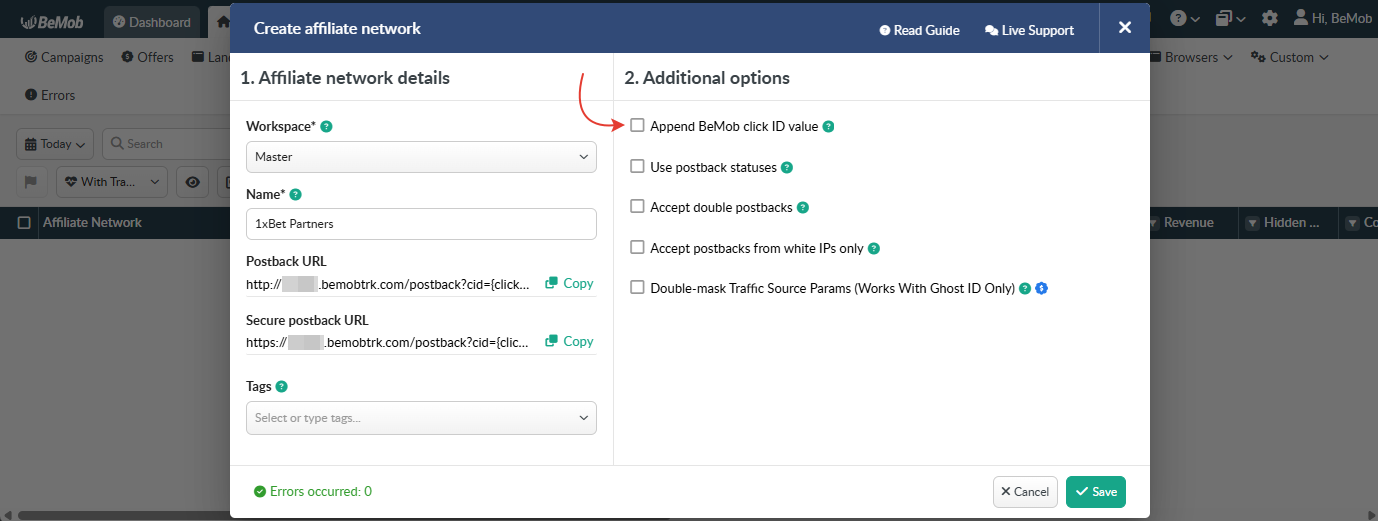
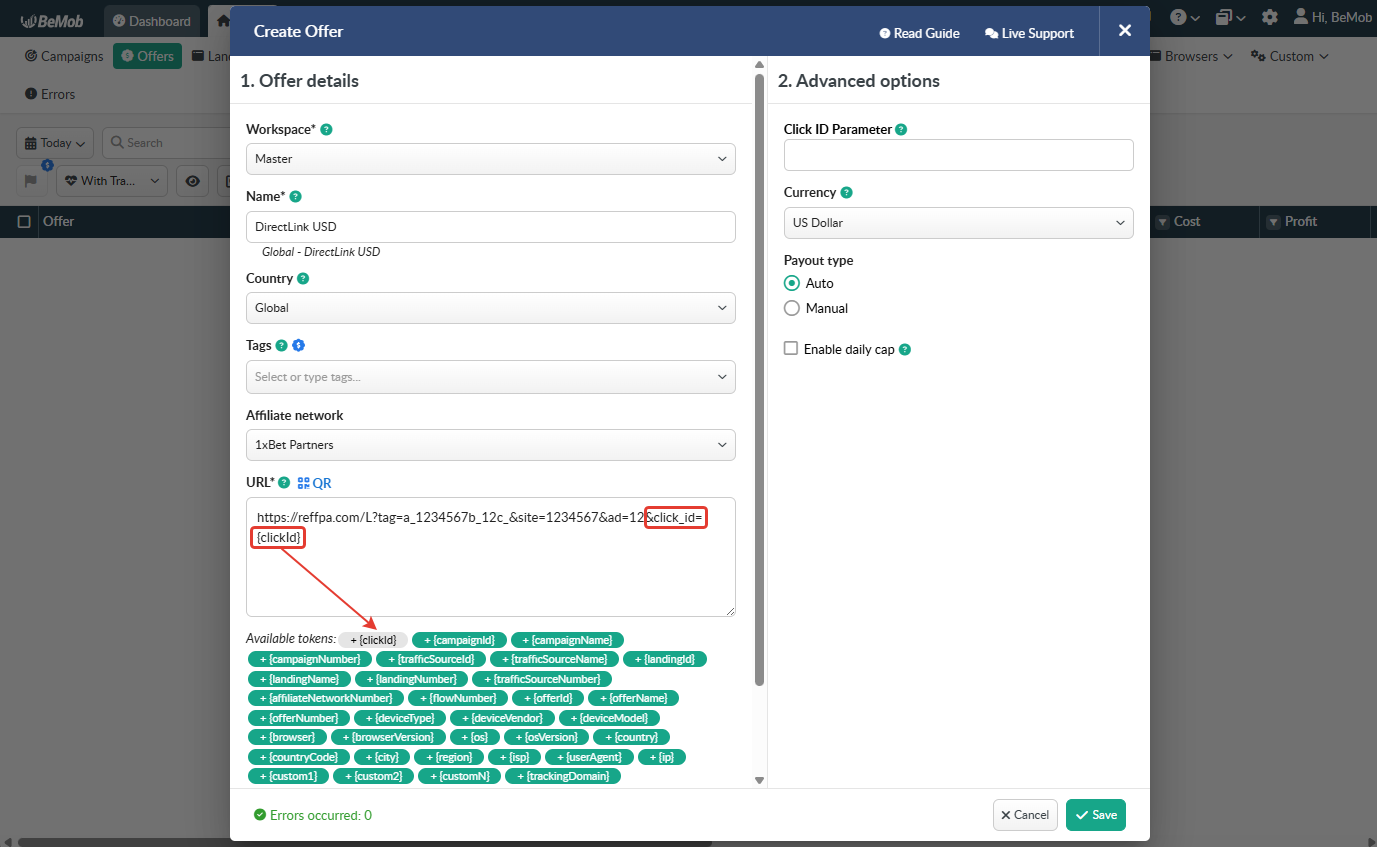
It is required to select either appending BeMob click ID automatically or manually in offer settings.
After 1xBet Partners offer is set up in BeMob, it is required to move on to traffic source or campaign settings.
If you have any questions or need the assistance with the settings, contact our support team through the live chat or at support@bemob.com