When you set the postback incorrectly or forget to specify the dedicated click ID parameter at the end of offer URL or in the affiliate network settings, the conversion will not appear in your BeMob report.
In this case it is possible to add a missing conversion manually in BeMob.
Before uploading a conversion manually make sure this conversion is not already presented in stats with different timestamp than you expect. For this specify the click ID in the search field.
To add a conversion manually the following steps should be done:
- press Settings on the panel;
- click Upload Conversions.
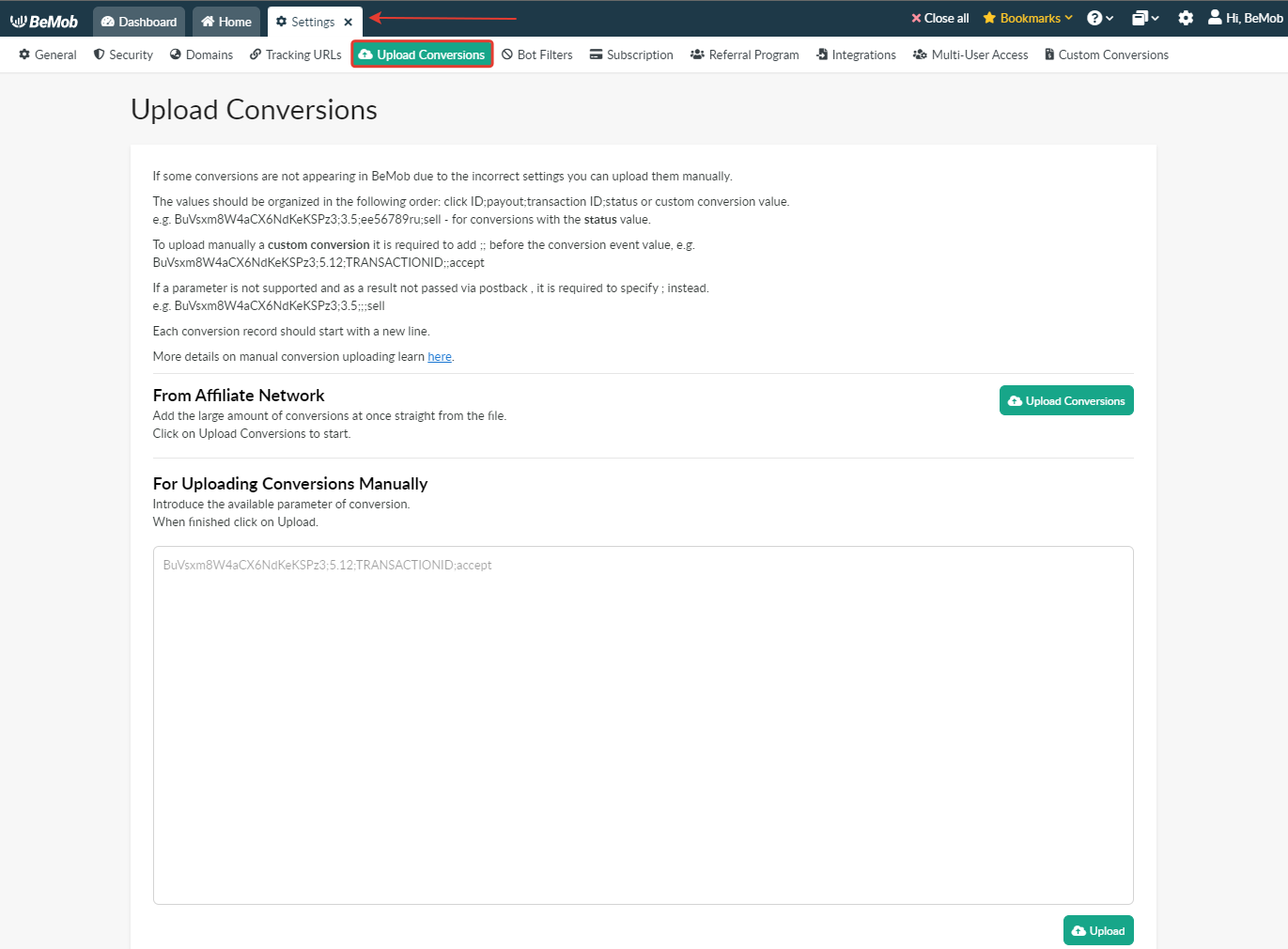
After the form for conversion uploading appears it is required to specify the click ID of conversion.
The click ID of conversion in BeMob contains 22 alpha-numeric symbols in lower and upper case.
The IDs should be available on the side of your affiliate network.
With some affiliate networks the click IDs are not visible in the affiliate panel.
In this case it is required to contact your affiliate manager, support team or other representative of the network to request the click ID of conversions.
After the click IDs data is available go back to BeMob panel → Settings → Upload Conversions and scroll down to 'For Uploading Conversions Manually'.
Introduce the conversion values in the following order:
- specify the click ID value which is 22 alpha-numeric symbols;
- put the ; sign to separate the click ID from other values;
- add payout, transaction ID and status values.
The sample conversion string for manual uploading, when all the values are available:
MW32HCb5BHLB7UhyOhY8uZ;12;35535;approved
where
- MW32HCb5BHLB7UhyOhY8uZ - click ID of conversion;
- 12 - payout, money you received from this conversion event;
- 35535 - transaction ID;
- approved - status value.
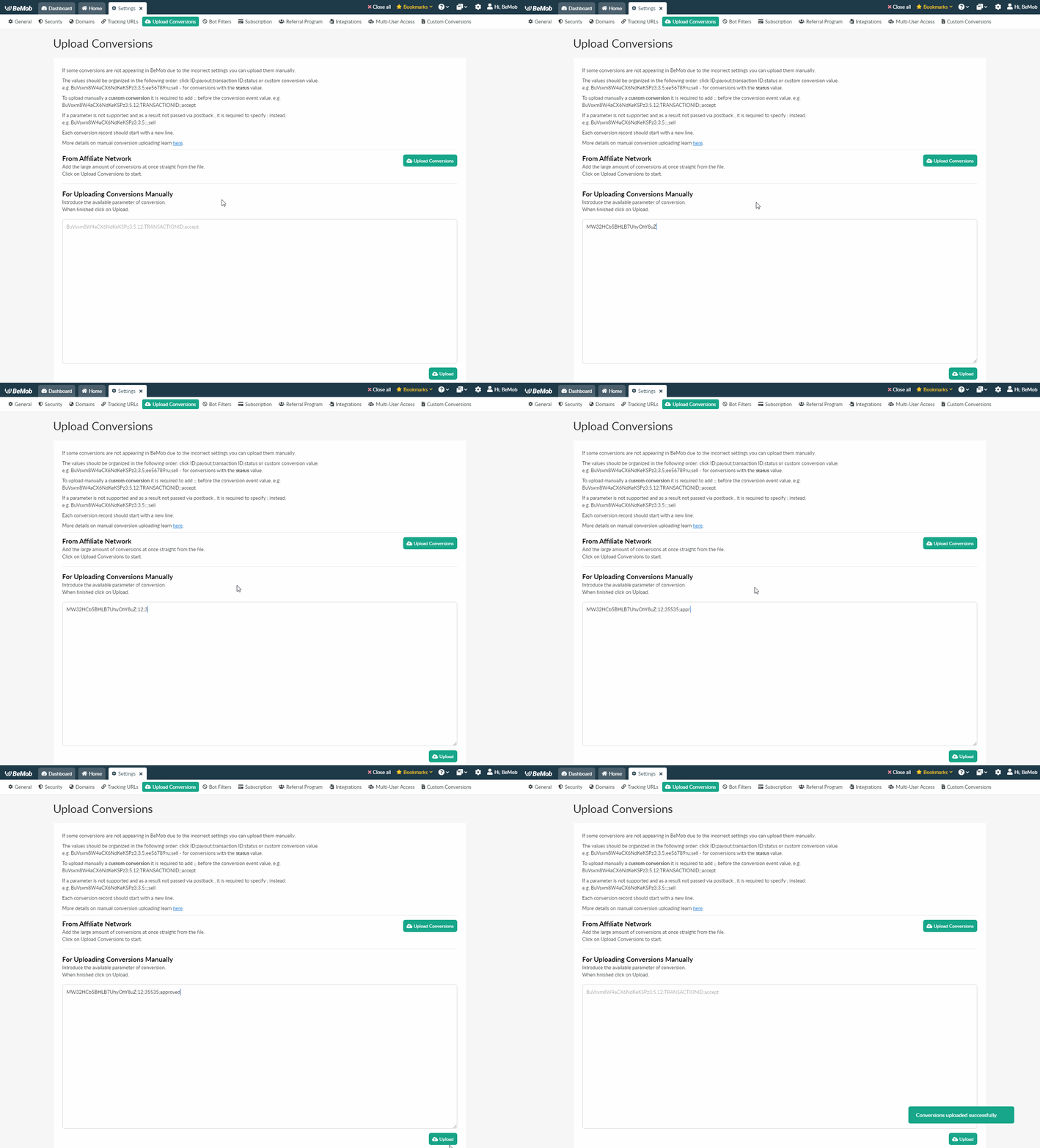
If your affiliate network is not supporting one of the additional parameters, e.g. payout, transaction ID or status, then this value should not be introduced.
Each missing value should be replaced with a ; sign instead.
The sample of conversion record without payout, but with transaction ID and status available:
MW32HCb5BHLB7UhyOhY8uZ;;35535;test
The sample of conversion record with no payout and transaction ID, but status value available:
MW32HCb5BHLB7UhyOhY8uZ;;;new
The sample of conversion record with payout and status value available only:
MW32HCb5BHLB7UhyOhY8uZ;12;;approved
Each next conversion should be started with a new line.
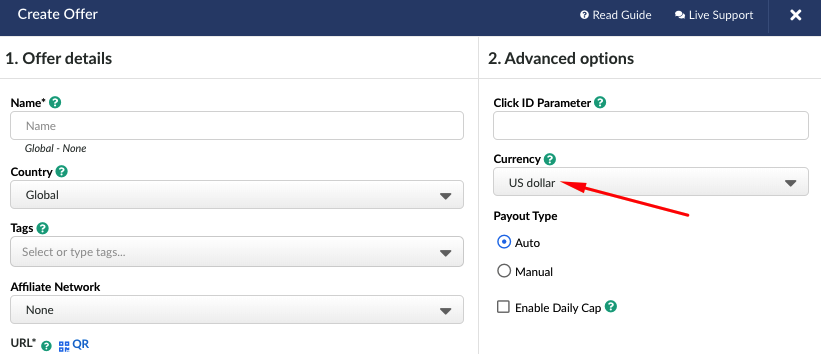
Payout value will be recorded in the currency specified in the offer settings.
The payout value will only be available for conversions with approved status.
For instance, if you decide to upload the conversion with status 'new' or 'declined' with payout value greater than 0, the payout will still be displayed as 0.
A conversion can only have a payout value if it is an approved conversion.
When conversions are uploaded manually, the conversion date shown in BeMob is determined by the global conversion time settings.
Visit time: The tracker records the conversion date and time based on the original visit — the moment the user clicked the campaign link that led to the conversion.
Postback time: The tracker records the conversion date and time based on when the conversion was manually uploaded.
¶ How to upload a custom conversion manually
A custom conversion is the additional event type which brings the payout to your campaign apart from the main conversion event. You can track deposits, subscriptions, registrations as custom conversions.
🔎 More about custom conversions learn in the dedicated guide.
To upload manually a custom conversion it is required to add ;; before the conversion event value.
e.g. MW32HCb5BHLB7UhyOhY8uZ;12;35535;;sell
where
- MW32HCb5BHLB7UhyOhY8uZ - click ID of conversion;
- 12 - payout, money you received from this conversion event;
- 35535 - transaction ID;
- sell - custom conversion value.
The sample of conversion record with payout available only:
MW32HCb5BHLB7UhyOhY8uZ;12;;;sell
The sample of conversion record with transaction ID available only:
MW32HCb5BHLB7UhyOhY8uZ;;35535;;sell
The sample of conversion record with no payout and transaction ID:
MW32HCb5BHLB7UhyOhY8uZ;;;;sell
Each next conversion should be started with a new line.
When all the conversion values have been added, press Upload.

You can upload up to 2000 conversions at a time.
¶ Bulk Uploading
It is also possible to add the large amount of conversions at once straight from the file.
To do that click on Upload Conversions button.
It is possible to upload a csv or txt file. The max size is 100 kb.
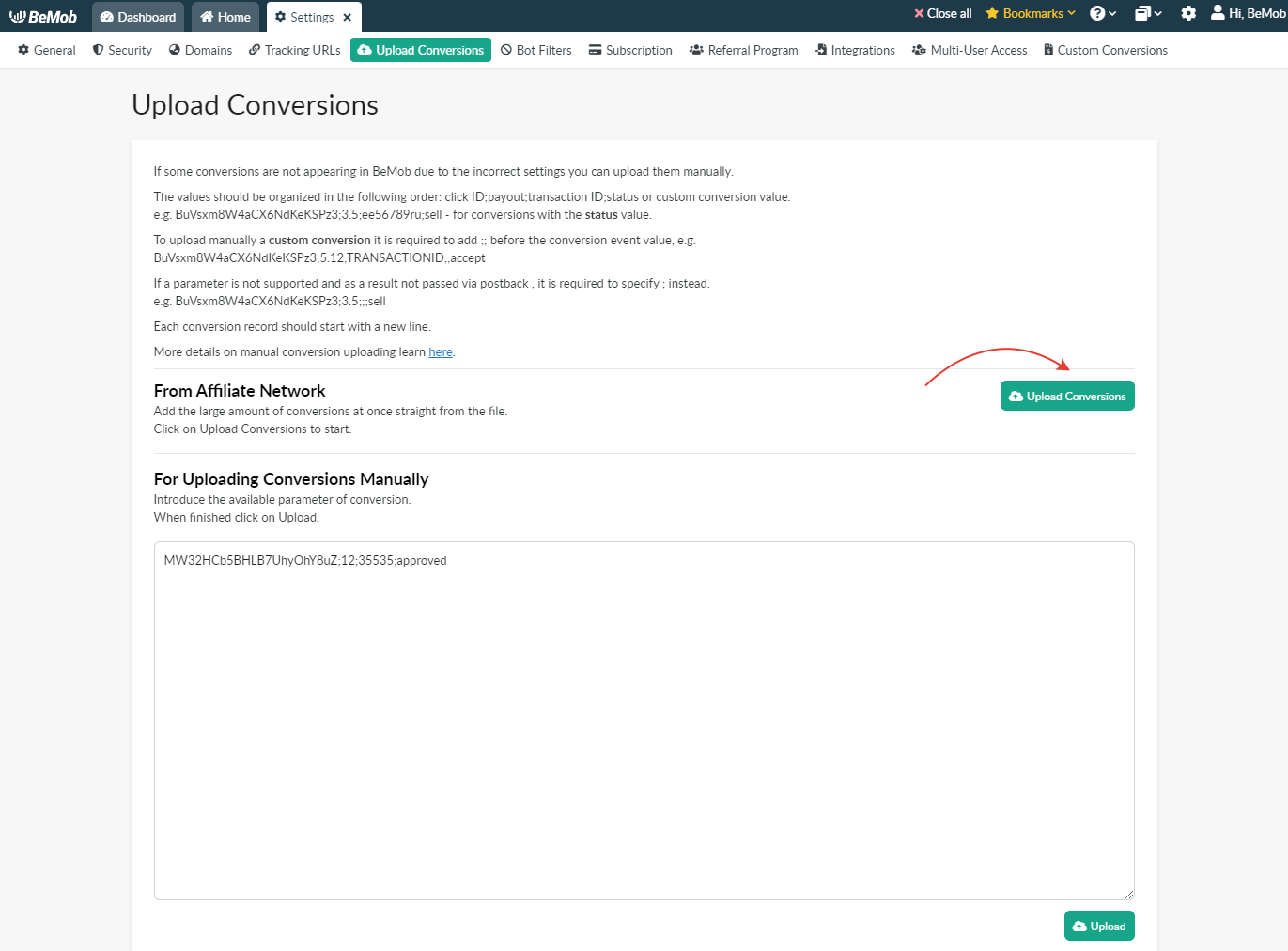
The data on conversions will be available in reports within 10 minutes.
A conversion uploaded manually will be displayed in BeMob statistics according to the Conversion Time in Reports selection (Settings → Reporting).
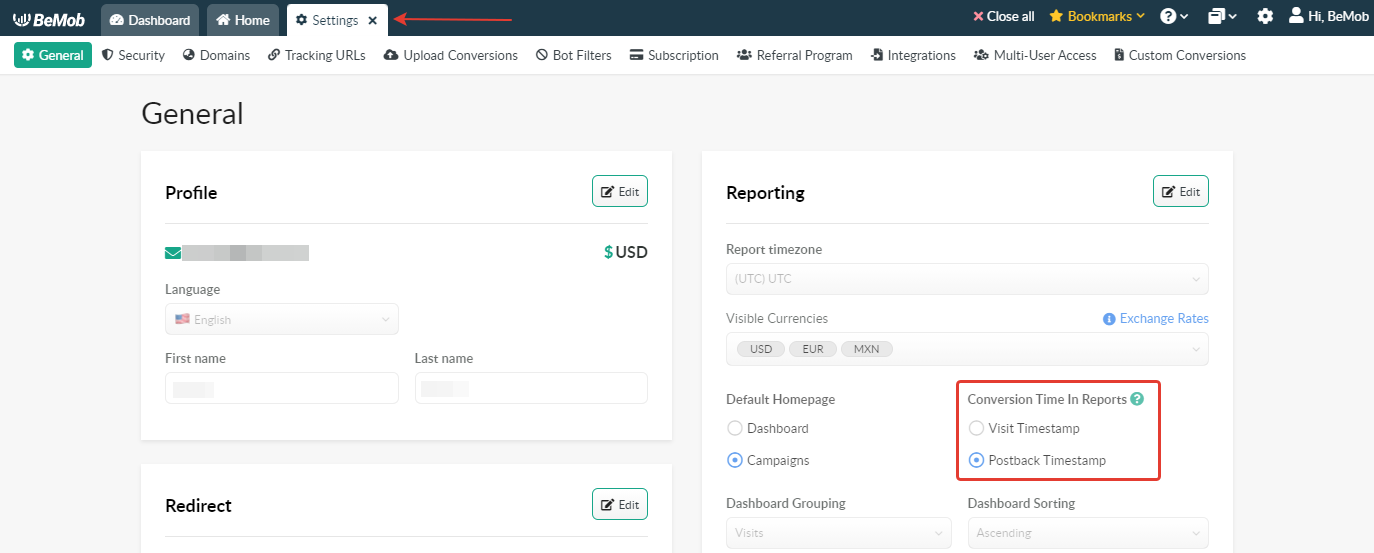
If Visit timestamp option is selected, an uploaded conversion will be displayed in tracker based on the time a visitor went through the Campaign URL.
If Postback timestamp option is selected, an uploaded conversion will be displayed according to the moment of time, when this conversion appeared in a campaign.
🔎 More details on the timestamp settings see in our dedicated guide.
If you have any questions or need the assistance with the settings, contact our support team through the live chat or at support@bemob.com